
- Details
- Written by: Ronell
- Category: Social
- Hits: 795
Using a Smartphone
Purpose of this Page
This page introduces the basic features and functions of a smartphone. It is designed for older adults who are new to smartphones or who would like to become more comfortable using their device before learning about online shopping.
Introduction
A smartphone is much more than a telephone. It can be used to communicate with family and friends, take photographs, access information, and perform many everyday tasks.
Many online shopping services are designed specifically for smartphones, making it possible to shop from almost anywhere.
Before learning how to shop online, it is important to understand the basic parts of a smartphone and how to interact with the screen.
What Is a Smartphone?
A smartphone is a mobile phone that allows you to:
-
Make and receive calls.
-
Send and receive messages.
-
Take photographs.
-
Browse the internet.
-
Use applications (apps).
-
Access online services.
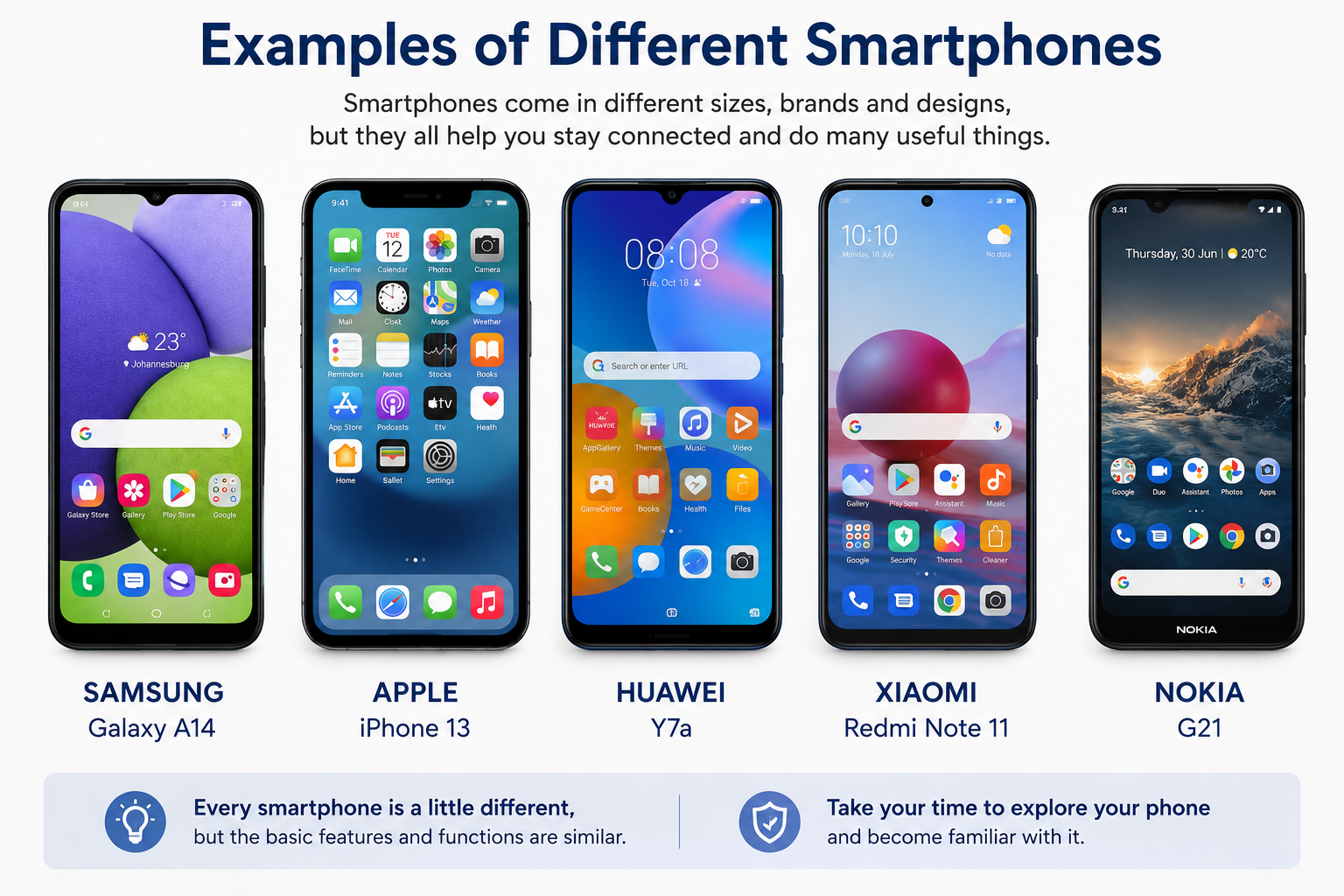
Popular smartphone brands include Samsung, Apple, Huawei, Xiaomi, Oppo and Nokia.
Parts of a Smartphone
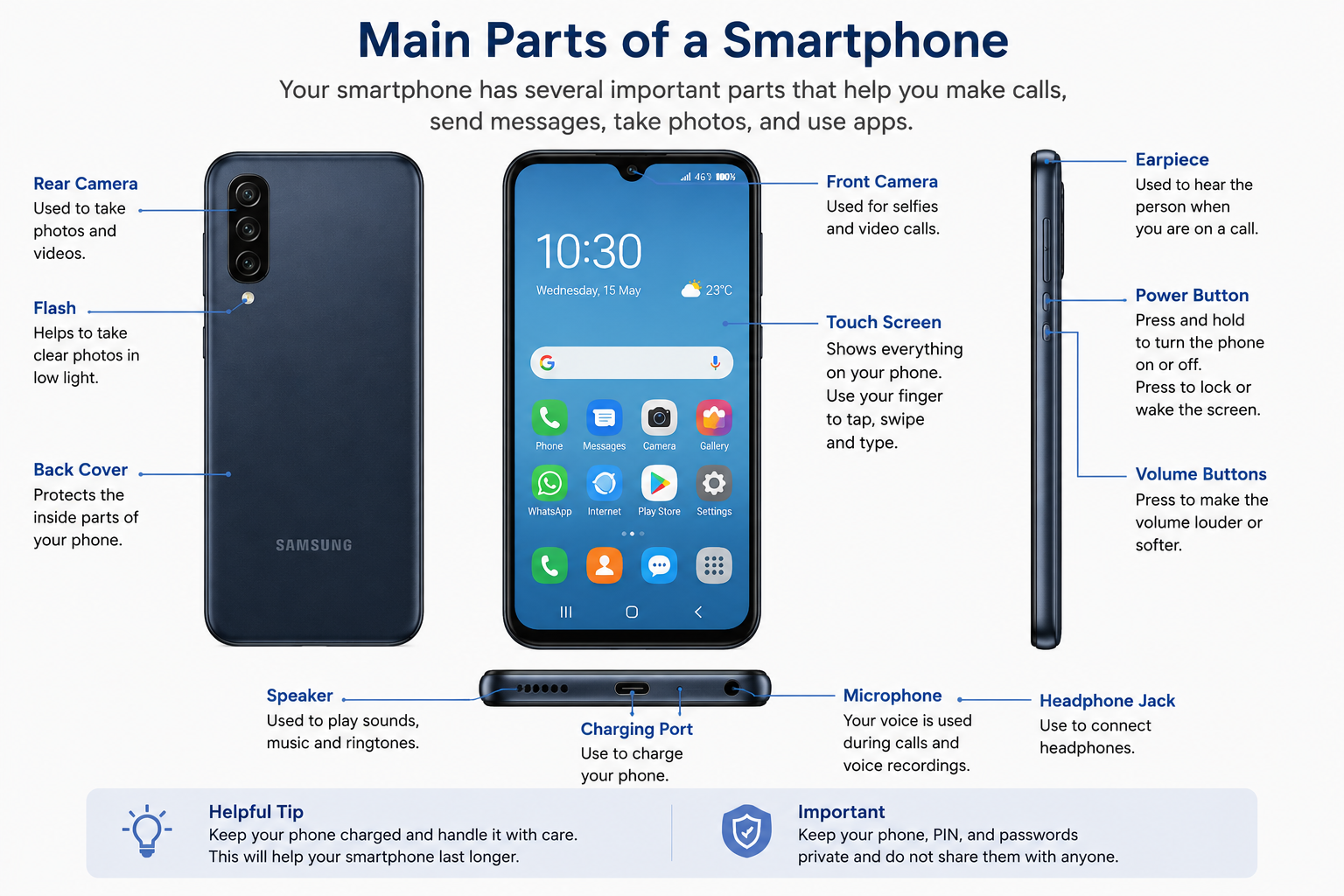
Most smartphones have the same basic features, although their appearance may vary.
Screen
The screen displays information and responds to touch.
Power Button
Used to turn the phone on and off and to lock the screen when not in use.
Volume Buttons
Used to increase or decrease the sound level.
Camera
Used to take photographs and videos.
Charging Port
Used to charge the battery.
Speaker
.
Turning Your Smartphone On and Off
To Turn Your Smartphone On
-
Press and hold the power button.
-
Wait for the screen to light up.
-
The phone will start automatically.
To Turn Your Smartphone Off
-
Press and hold the power button.
-
Select the option to switch off the device.
-
Wait for the phone to shut down.
Using the Touchscreen
Unlike traditional mobile phones, smartphones are controlled by touching the screen.
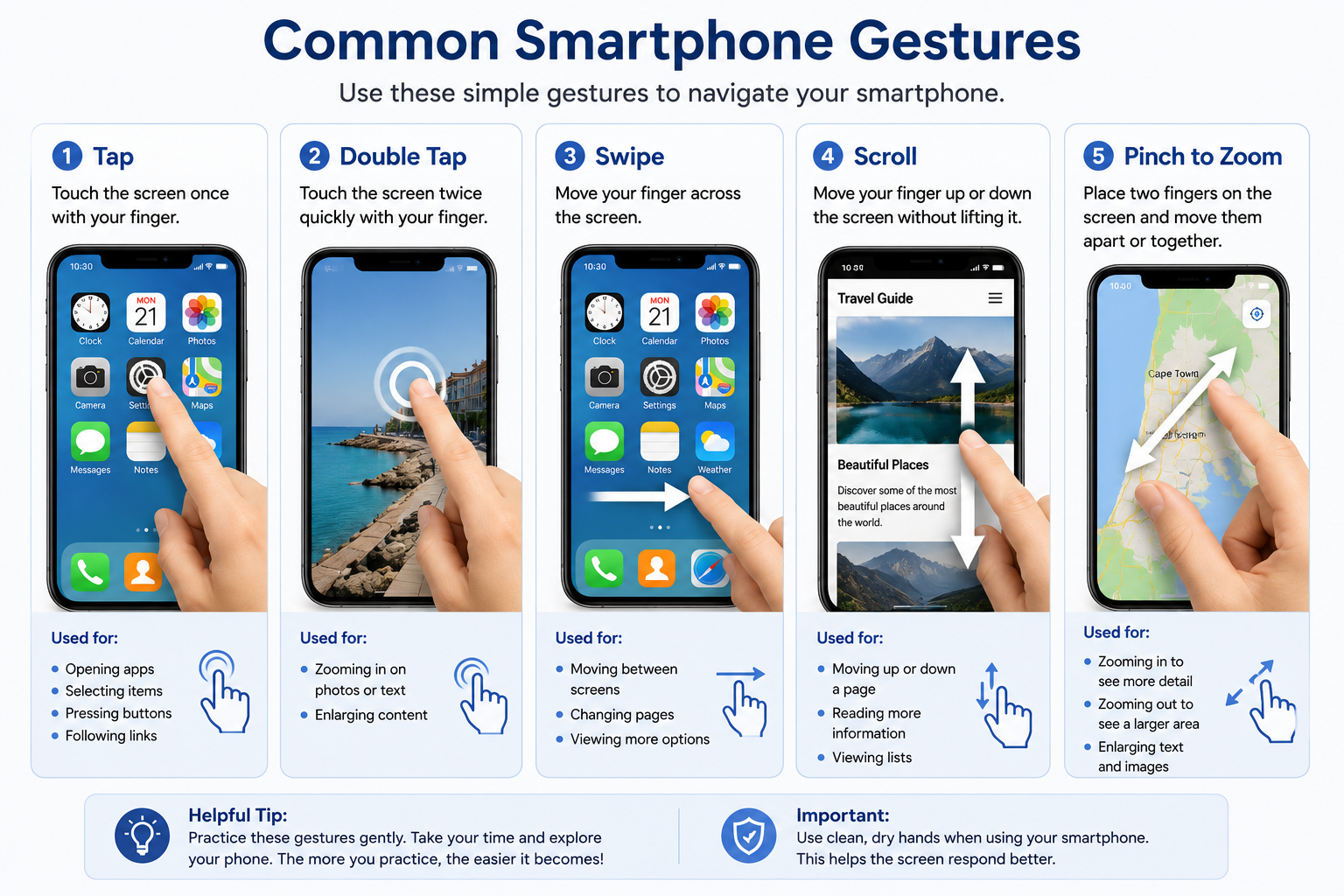
Tap
A tap means touching the screen once with your finger.
A tap is used to:
-
Open items.
-
Select options.
-
Press buttons.
Swipe
A swipe is made by moving your finger across the screen.
A swipe is used to:
-
Move between screens.
-
Scroll through information.
-
View additional content.
Scroll
Many pages contain more information than can fit on the screen.
Place your finger on the screen and gently move it upward to view additional content below.
Pinch to Zoom
Place two fingers on the screen and move them apart to make text or images larger.
Move the fingers together again to make them smaller.
Understanding the Home Screen
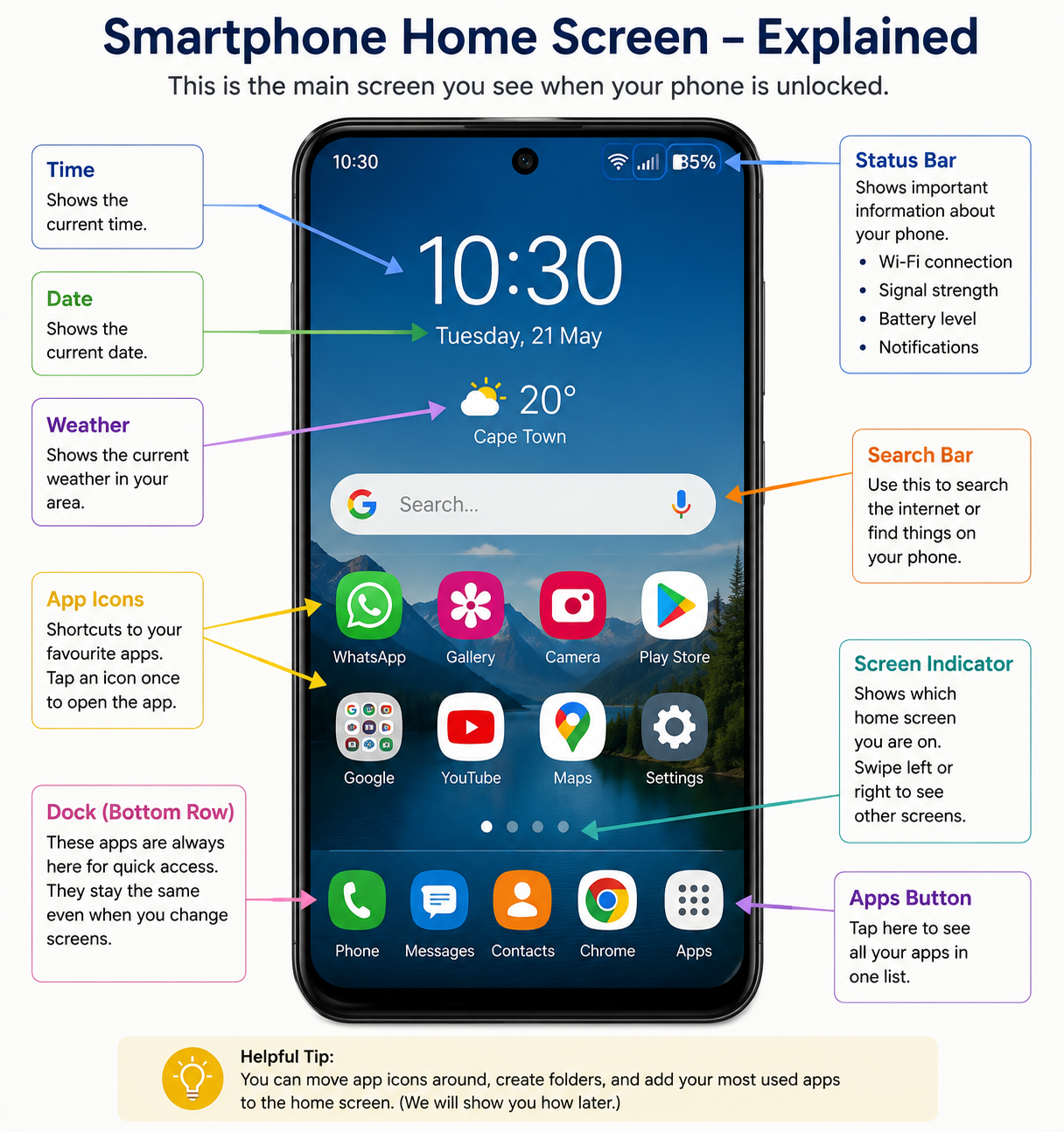
The Home Screen is the main screen displayed when the phone is unlocked.
It usually contains:
-
Frequently used applications.
-
Shortcuts.
-
The date and time.
-
Battery information.
-
Notifications.
Most smartphones allow you to move between multiple Home Screens by swiping left or right.
Understanding Common Icons
Many smartphones display small icons at the top of the screen.
Examples include:
-
Battery level.
-
Signal strength.
-
Wi-Fi connection.
-
Notifications.
-
Time and date.
Learning to recognise these icons will help you understand the status of your device.
Locking and Unlocking Your Phone
Most smartphones use a security feature to prevent unauthorised access.
Common methods include:
-
PIN numbers.
-
Passwords.
-
Fingerprint recognition.
-
Facial recognition.
Always keep your security information private.
Looking After Your Smartphone
To keep your smartphone working properly:
-
Charge it regularly.
-
Keep the screen clean.
-
Store it safely when not in use.
-
Install updates when prompted.
-
Use a protective cover if possible.
Helpful Tip
Spend a few minutes each day exploring your smartphone. The more familiar you become with the device, the easier it will be to learn new skills.
Important Warning
Do not share your PIN, password or security information with anyone. If someone asks for this information, do not provide it.
Summary
Smartphones are powerful and useful devices that can help you stay connected and access many services.
By learning the basic parts of the device and how to use the touchscreen, you are taking the first step towards confidently using online services and shopping safely online.
- Details
- Written by: Ronell
- Category: Social
- Hits: 934

Welcome to Safe Online Shopping for Seniors
[Insert Video: Online Shopping Tips and Hints for the Elderly.mp4]
Purpose of this Website
This website is designed to help older adults learn how to shop online safely, confidently, and independently.
Introduction
Online shopping has become a convenient way to purchase groceries, clothing, household items, gifts, medication, and many other products without leaving home.
While online shopping may seem confusing at first, it can be easy and safe when you understand the basic steps and know how to protect yourself from scams.
This website provides simple, step-by-step guidance to help you learn how online shopping works and how to shop safely using trusted websites.
Why Learn Online Shopping?
Online shopping offers many benefits:
-
Shop from the comfort of your home.
-
Compare prices from different stores.
-
Access a wider range of products.
-
Save time and travel costs.
-
Have purchases delivered directly to your door.
-
Shop at any time of the day or night.
What You Will Learn
This website will help you:
-
Understand the basics of online shopping.
-
Use a computer or smartphone for shopping.
-
Create and manage online shopping accounts.
-
Search for and compare products.
-
Make secure online payments.
-
Understand delivery and return processes.
-
Recognise and avoid online scams.
-
Protect your personal and financial information.
Getting Started
If you are new to online shopping, we recommend starting with the Getting Started section. There you will learn the basic skills needed before making your first online purchase.
Remember
Everyone starts as a beginner. Take your time, follow the guidance provided, and do not be afraid to ask for help when needed. With practice, online shopping can become a simple and useful part of everyday life.
Quick Navigation
-
Getting Started
-
Shop Safely
-
How to Shop Online
-
Paying Online
-
Delivery and Returns
-
Avoiding Scams
-
Helpful Resources
-
Frequently Asked Questions
Helpful Tip
Keep a notebook where you can safely record website names, usernames, and important information. Never write down passwords where others can easily find them.
Important Warning
Never share your banking PIN, password, or one-time password (OTP) with anyone. Legitimate businesses and banks will never ask for this information by email, text message, or telephone.
Summary
Online shopping can make everyday life easier and more convenient. This website will guide you through each step and help you develop the knowledge and confidence needed to shop safely online.